ይህ ገጽ ገና ወደ አማርኛ አልተተረጎመም። የእንግሊዝኛው ጽሑፍ ቀርቧል።
Exam Clearance & Digital Admit Card Issuance
Enforce academic, financial, and attendance clearance gates before issuing secure, barcoded examination admit cards.
1. Overview & Business Value#
This comprehensive operational guide details the architecture, business workflows, configuration parameters, and execution steps for Exam Clearance & Digital Admit Card Issuance within SmartERP.
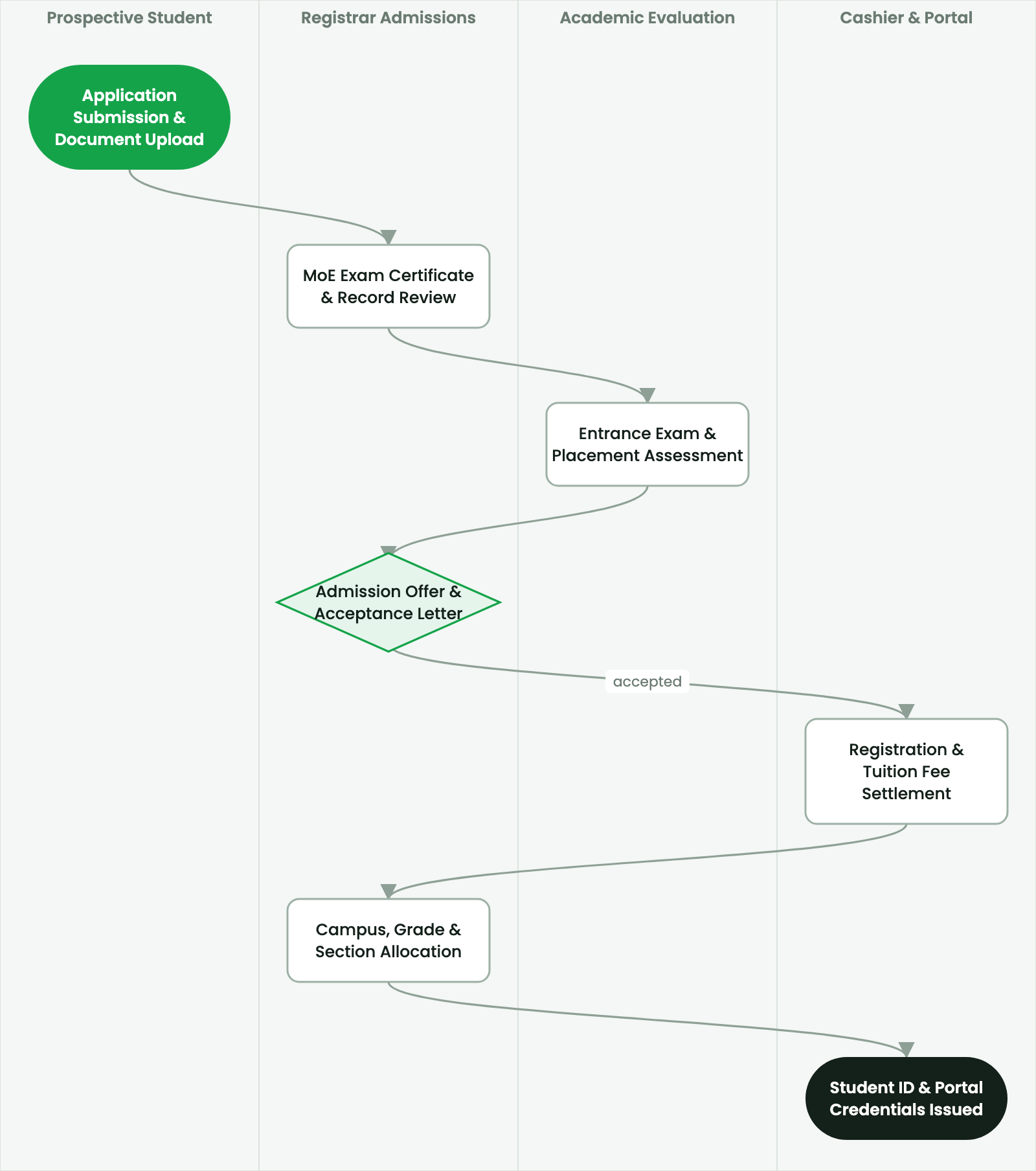
Enforce academic, financial, and attendance clearance gates before issuing secure, barcoded examination admit cards.
2. Prerequisites & Security Access Groups#
- Required Modules:
smarterp_higher_education, smarterp_student_records - Security Groups:
Admissions Officer(Technical ID:smarterp_higher_ed.group_admissions_user)Registrar / Academic Dean(Technical ID:smarterp_higher_ed.group_registrar_manager)Faculty Member / Instructor(Technical ID:smarterp_higher_ed.group_faculty_user)
- Master Data Dependencies: Faculties, departments, ECTS modular curricula, academic semesters (Ethiopian/Gregorian calendar), tuition fee schedules, and student master files.
3. Step-by-Step Configuration & Execution#
Step 1: Navigating to the Interface#
- Log into your SmartERP instance at
https://smarterp.et/odoo. - Open the main App Switcher (grid icon in the top-left corner).
- Navigate to Academic → Students → Admissions.
Step 2: Operational Data Parameters & Controls#
Ensure all mandatory parameters comply with enterprise operational standards:
- Authorized Operator: Action executed under assigned RBAC permissions (Academic Registrar, Faculty Dean, Student Affairs Officer).
- Relational Integrity: Linked to upstream master records, approval requests, or transactional ledgers.
- Statutory & Quality Controls: Verified against Ethiopian statutory regulations and corporate governance standards.
Step 3: Operational Execution & State Progression#
- State Progression Gate: Advance record from Draft through Audited to Confirmed / Certified.
- Integrated System Impact: Automatically updates real-time operational states and posts financial/inventory journal moves.
- Audit Verification: System registers tamper-evident audit records logging user ID, timestamp, and cryptographic transaction digests.
Three-Gate Examination Clearance Protocol#
To ensure institutional compliance, students must satisfy three independent clearance gates before sitting for final examinations:
flowchart TD
    A["Student Requests Exam Permit"] --> B{"Gate 1: Academic Registration Valid?"}
    B -- No --> C["Permit Denied: Unregistered Student"]
    B -- Yes --> D{"Gate 2: Attendance >= 80%?"}
    D -- No --> E["Permit Denied: Barred Due to Absences"]
    D -- Yes --> F{"Gate 3: Tuition Fees 100% Settled?"}
    F -- No --> G["Permit Denied: Outstanding Financial Balance"]
    F -- Yes --> H["Issue Digital Barcoded Exam Admit Card"]
Automated Admit Card Generation#
Once all three gates clear:
- Navigate to Higher Education > Examinations > Admit Cards.
- Click Generate Batch Admit Cards.
- Select Academic Term and Department.
- The system compiles verified student credentials:
- Student Identity: Full Name, Student ID (
UGR/1842/19), Passport Photo. - Cleared Course List: List of verified courses eligible for examination.
- Exam Timetable & Room Matrix: Exact exam date, session time, and allocated hall/seat.
- Security Elements: High-density QR code embedding cryptographic signature and student hash.
- Student Identity: Full Name, Student ID (
Mobile Portal Admit Card Access#
- Students open the Student Mobile App 48 hours prior to examination week.
- Click Download Exam Permit.
- The permit displays on screen with an animated anti-screenshot security watermark.
- Students may also print a hardcopy for presentation at the examination hall entrance.
Hall Entrance QR Verification#
- At the examination hall door, the invigilator scans the student's admit card QR code using the SmartERP Proctor App.
- The scanner validates:
- Verified student photo matching candidate in person.
- Course registration confirmed for this specific hall.
- Attendance status verified.
- Green checkmark confirms entry; red warning alerts security to fraudulent or barred candidates.
4. Advanced Configuration Points#
- Automated Actions & Scheduled Tasks (Crons):
Education: Compute semester GPA and cumulative CGPA(smarterp_higher_ed.ir_cron_cgpa_calc): Runs at the end of each examination period to compute student academic standingFinance: Generate semester tuition fee invoices(smarterp_higher_ed.ir_cron_tuition_invoices): Runs prior to semester registration deadline
- Custom Print Templates & Reports:
- Official Student Academic Transcript (MoE & ETA Standards)
- Semester Course Registration & Clearance Slip
- Student ID Card with Cryptographic QR Verification
- Examination Results & Faculty Grade Distribution Ledger
- Multi-Company Rules: Record-level security isolation under Company 1 (
Ashewa Technology Solutions S.C.), preventing cross-company ledger leakage across parent and subsidiary legal entities.
5. Comprehensive Troubleshooting Matrix#
| Error Symptom / Exception | Probable Root Cause | Corrective Action / Resolution |
|---|---|---|
Prerequisite Blocked: Missing course prerequisite | Student has not successfully passed the prerequisite course code. | Register the student for prerequisite course or submit an academic dean prerequisite waiver. |
Grading Window Closed: Semester deadline passed | Faculty grade submission period has officially concluded. | Request temporary grade submission reopening from the Academic Registrar. |
Financial Hold: Outstanding tuition balance | Student examination entry or portal access blocked due to unpaid tuition invoice. | Process fee payment via Telebirr or record bank deposit voucher in the Finance office. |
መጨረሻ የተሻሻለው: 2026-11-15