Process point of sale retail transactions
Barcode scanning, item lookup, customer selection, split tenders, and fast receipt printing in the retail POS terminal.
1. Overview & Business Value#
This comprehensive operational guide details the architecture, business workflows, configuration parameters, and execution steps for Process point of sale retail transactions within SmartERP.
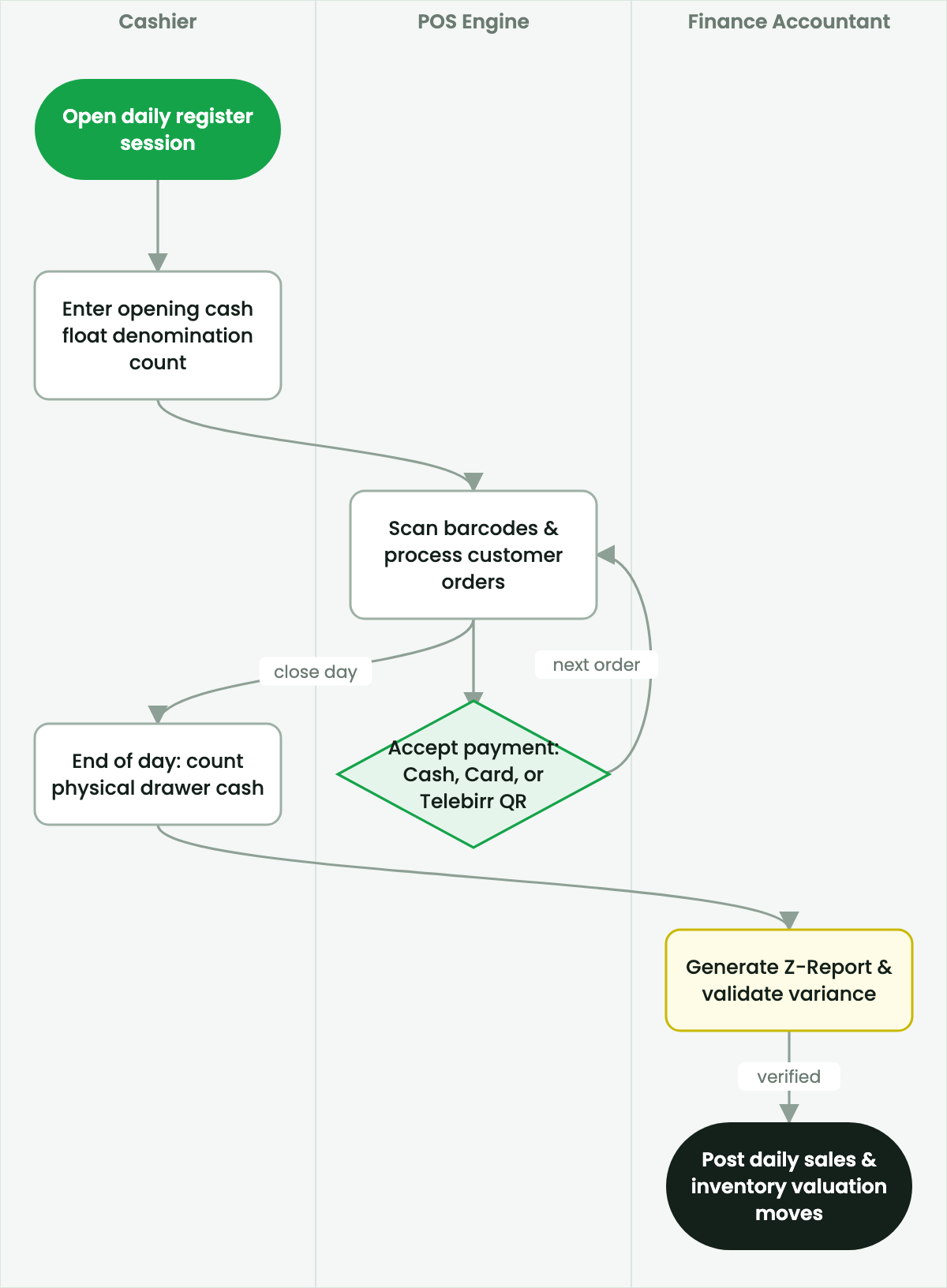
This guide explains how cashiers ring up sales in the SmartERP Point of Sale interface.
2. Prerequisites & Security Access Groups#
- Required Modules:
sale_management, crm, point_of_sale, smarterp_payment_telebirr - Security Groups:
Sales User(Technical ID:sales_team.group_sale_salesman)Sales Administrator(Technical ID:sales_team.group_sale_manager)POS User / Cashier(Technical ID:point_of_sale.group_pos_user)
- Master Data Dependencies: Customer partner registry, selling pricelists, product inventory balances, payment providers (Telebirr/CBE Birr), and POS terminal sessions.
3. Step-by-Step Configuration & Execution#
Step 1: Navigating to the Interface#
- Log into your SmartERP instance at
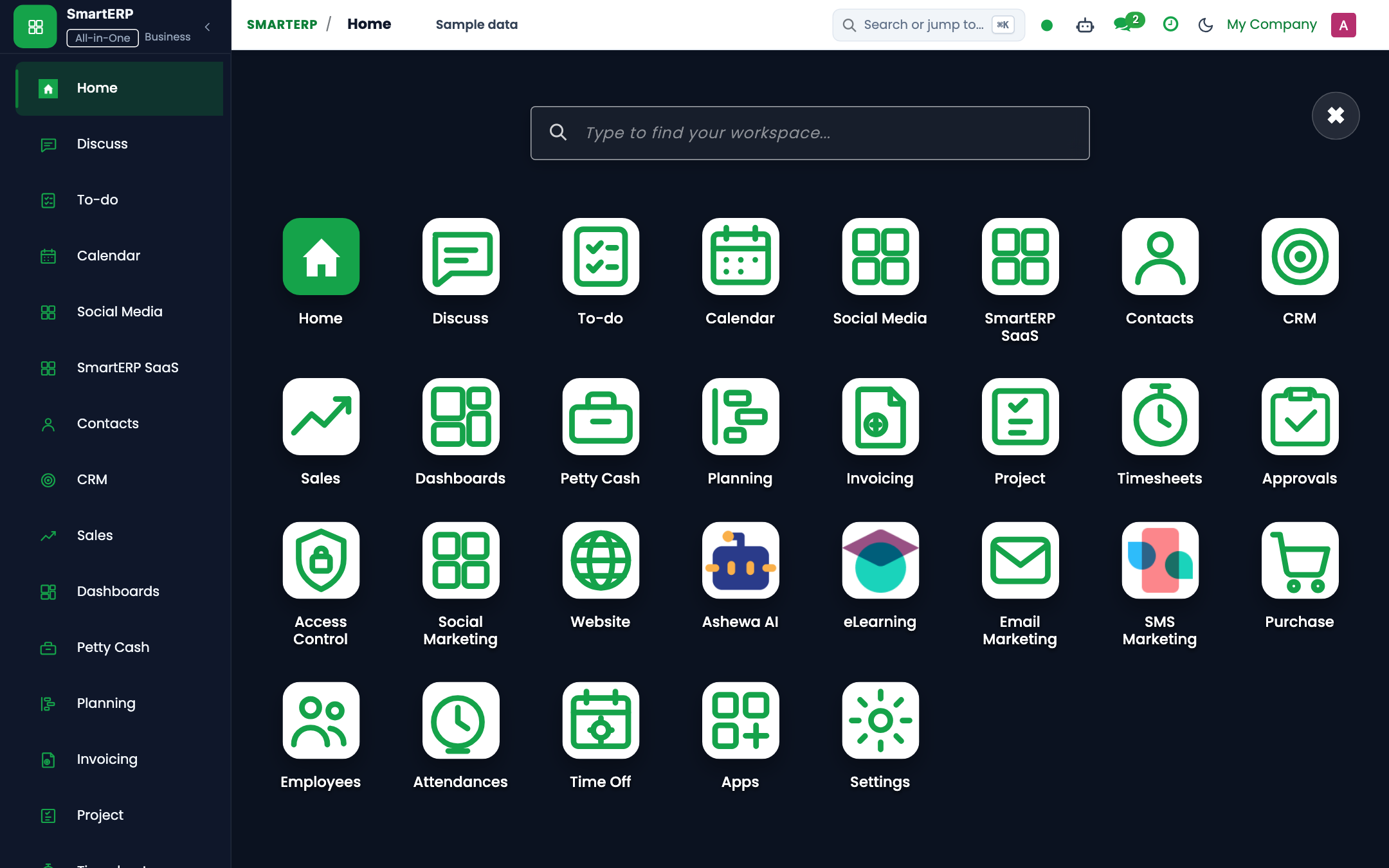
https://smarterp.et/odoo. - Open the main App Switcher (grid icon in the top-left corner).
- Navigate to Point of Sale → Active Session.
Step 2: Operational Data Parameters & Controls#
Ensure all mandatory parameters comply with enterprise operational standards:
- Authorized Operator: Action executed under assigned RBAC permissions (Retail Cashier, Sales Associate).
- Relational Integrity: Linked to upstream customer, product, inventory lot, or manufacturing order.
- Statutory & Quality Controls: Verified against Ethiopian commercial and tax regulations or technical engineering specifications.
Step 3: Operational Execution & State Progression#
- State Progression Gate: Advance record from Draft through Confirmed to Completed / Posted.
- Integrated System Impact: Automatically updates inventory stock quants, customer receivables, or work-in-progress cost accounting ledgers.
- Audit Verification: System registers tamper-evident audit records logging user ID, timestamp, and cryptographic transaction digests.
Procedure#
- Add Items to Ticket:
- Scan item barcode using GS1 hand scanner, or search product by name in the touch interface.
- Tap quantity or price keypad buttons to adjust line items.
- Customer Selection:
- For walk-in retail: Leave as default Walk-in Retail Customer.
- For corporate accounts: Tap Customer, search by name or TIN, and select profile.
- Checkout and Payment:
- Tap the large green Payment button.
- Select payment tender method: Cash, Card (POS Terminal), or Telebirr.
- Split Payments:
- If a customer pays part cash and part digital: Tap Cash, enter amount tendered (e.g.
500 ETB), then tap Telebirr for the remaining balance (e.g.1,250 ETB).
- If a customer pays part cash and part digital: Tap Cash, enter amount tendered (e.g.
- Print Receipt:
- Tap Validate. The receipt printer cuts the ticket, drawer opens, and the system readies for the next transaction.
4. Advanced Configuration Points#
- Automated Actions & Scheduled Tasks (Crons):
CRM: Lead auto-assignment(crm.ir_cron_lead_assign): Runs hourly to allocate unassigned leads across sales teamsSales: Expire overdue quotations(sale.ir_cron_expire_quotes): Runs nightly to mark stale quotes as cancelledPOS: Close abandoned register sessions(point_of_sale.ir_cron_session_cleanup): Runs nightly to alert managers of open cashier terminals
- Custom Print Templates & Reports:
- Customer Sales Quotation / Pro-forma Invoice
- Commercial Tax Invoice (Model 85 Compliant)
- POS Cash Register Receipt with QR Validation
- Customer Credit Limit & Receivables Aging Statement
- Multi-Company Rules: Record-level security isolation under Company 1 (
Ashewa Technology Solutions S.C.), preventing cross-company ledger leakage across parent and subsidiary legal entities.
5. Comprehensive Troubleshooting Matrix#
| Error Symptom / Exception | Probable Root Cause | Corrective Action / Resolution |
|---|---|---|
Credit Limit Blocked: Customer balance exceeds ceiling | Outstanding customer debt plus current order exceeds approved credit limit. | Obtain credit committee exception approval or collect an advance cash payment. |
Validation Error: Tax definition missing on product line | Product item lacks default statutory 15% VAT mapping. | Update the product master accounting tab with standard statutory VAT rates. |
POS Session Error: Cash register mismatch upon closure | Physical cash count does not reconcile with POS recorded register balance. | Document discrepancy explanation in the closing wizard and submit for manager review. |
Payment Gateway Error: Telebirr timeout | Network timeout or invalid API bridge credentials. | Verify merchant credentials in Invoicing → Configuration → Payment Providers and retry transaction query. |
Next#
- Digital payments: Accept Telebirr QR and digital payments.
Last updated: 2026-11-15