Retail Sales Management
SmartERP POS- The all in one retail management dashboard
With the specific Point Of Sales module offered in SmartERP, you can manage your company's retail sales activities. All activities are simply performed via the specialized dashboard, which facilitates retail sales operations from the retail shop's sale counter. You can operate several stores, all of which will be unified under the same Smart platform, giving you total control and insight over retail shop operations
The industry
A shop wins on the right stock, at the right price, at the counter
- Stock is counted by hand and shelves run out unnoticed.
- Prices differ between shops and over time.
- Sales reports arrive after the decisions were needed.
- Online and counter sales are kept separately.
How the work flows
From the first step to the management dashboard
Purchasing, stock, the till and the online shop work from one catalogue, so what you sell in one place is what you reorder in another.
In the product
A real SmartERP screen for this work
Captured from a running SmartERP system. Every company, person and figure shown is invented sample data.

Beyond a generic ERP
What goes further for this industry
Online shop on the same catalogue
E-commerce shares products, prices and stock with the counter.
Customer campaigns
Email and SMS marketing tied to CRM (SMS needs your gateway).
Commission and incentives
Coming soon
Sales commission and incentive tracking. Not offered yet.
Management visibility
What management sees
Sales by shop and product and stock levels on one dashboard.
What changes
The outcome, without invented numbers
- One catalogue and one price per product.
- Stock reflects what was sold, wherever it was sold.
- Reorders follow real movement.
Not included: Mobile-money payment at the till is a custom integration; see the integrations page.
Built for you
Who this solution is for
Owner-managed neighbourhood shops (gifts, stationery, household goods, convenience items) with one to a few counters that buy from named suppliers and quote schools and small offices.
Typical size: up to 10 people, 11 to 50 people.
How it works
Your work, step by step in SmartERP
The routine of this industry, followed from the first step to the money in the bank.
Closing the counter at the end of the trading day
Point of SaleInventoryAccounting
- The cashier serves walk-in customers at the point-of-sale till, which runs in the browser on the shop's computer.
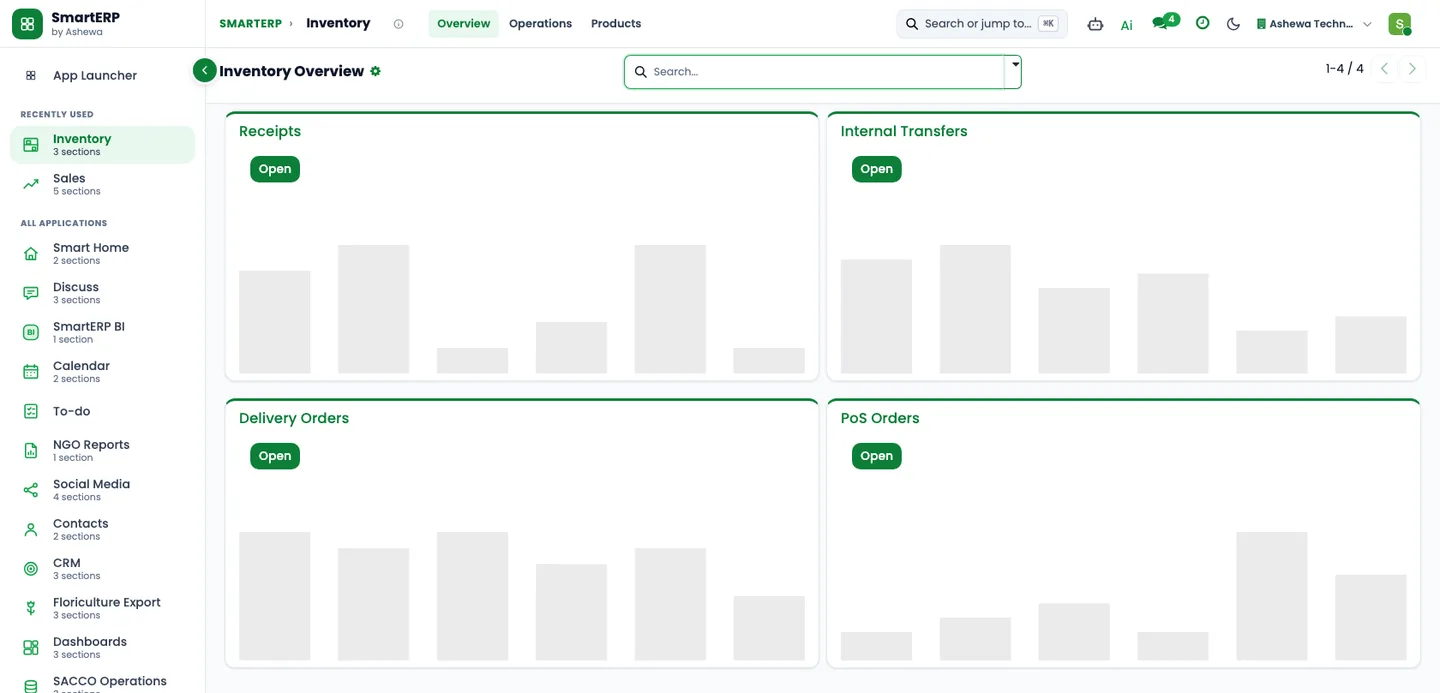
- Items sold at the till reduce the stock of storable products, so the next morning's stock report is current.
- At closing the cashier counts the drawer and the till shows any difference from the amount it expects.
- Finance records the deposit of the day's cash so the drawer, the safe and the ledger agree.
An online order collected or delivered locally
E-commerceSalesInventoryAccounting
- A household builds a basket on the online shop from items the shop sells and places the order.
- The shop team packs the order for collection at the counter or for local delivery.
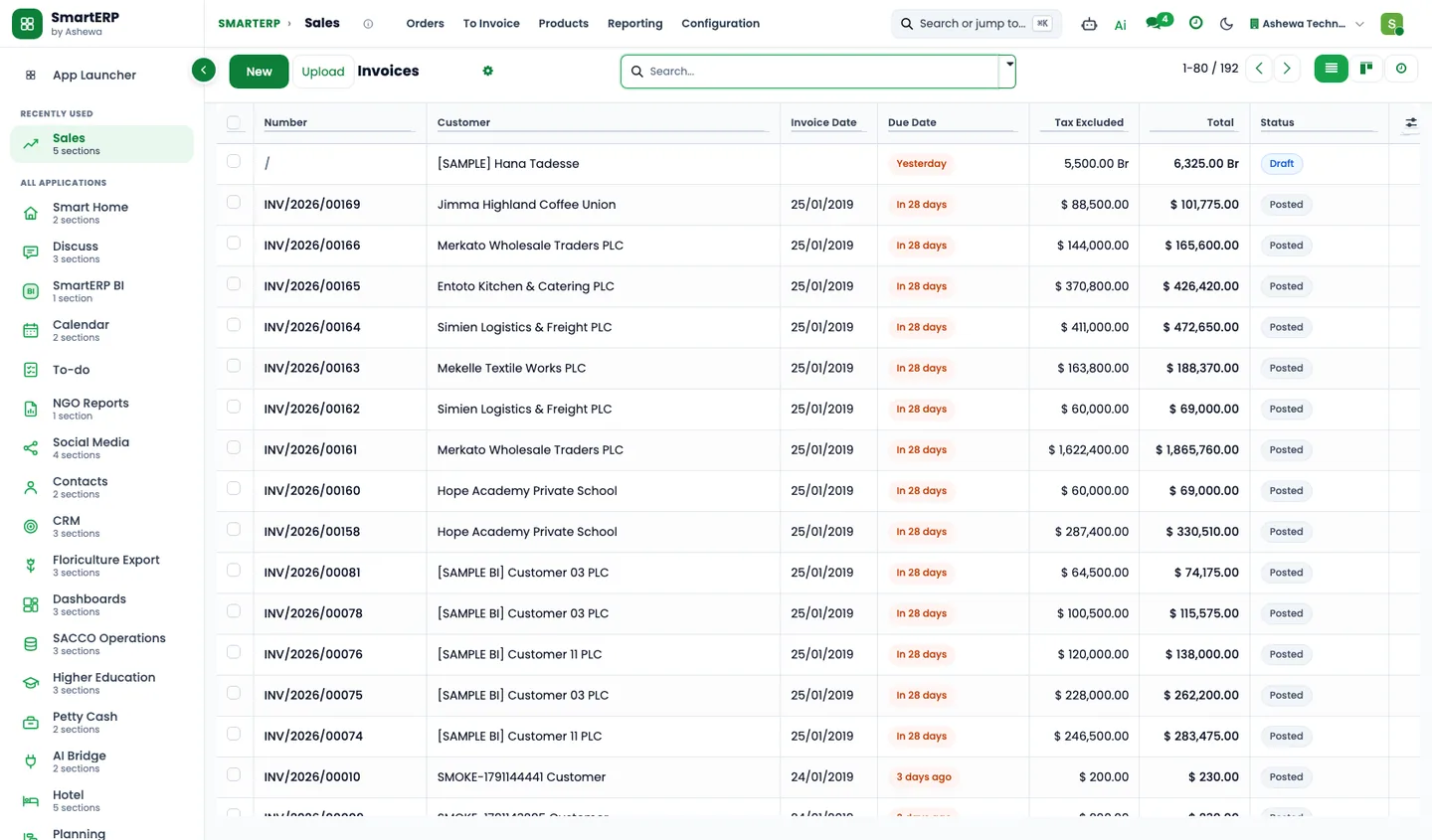
- Sales shows which online orders are delivered and which are invoiced.
- A gift that is exchanged or refused is booked back into stock and a credit note records it.
A written quotation for a school or small office
- The shop logs the school's or office's enquiry as an opportunity with a planned next call.
- The sales associate prepares a quotation from the shop's items, using the buyer's price list.
- When the buyer accepts, the quotation becomes a sales order and the goods are delivered from stock.
- Finance invoices the delivered items; the invoice can be printed or emailed.
Restocking before a shelf is empty
- A reordering rule with a minimum and a maximum flags an item that falls below its minimum.
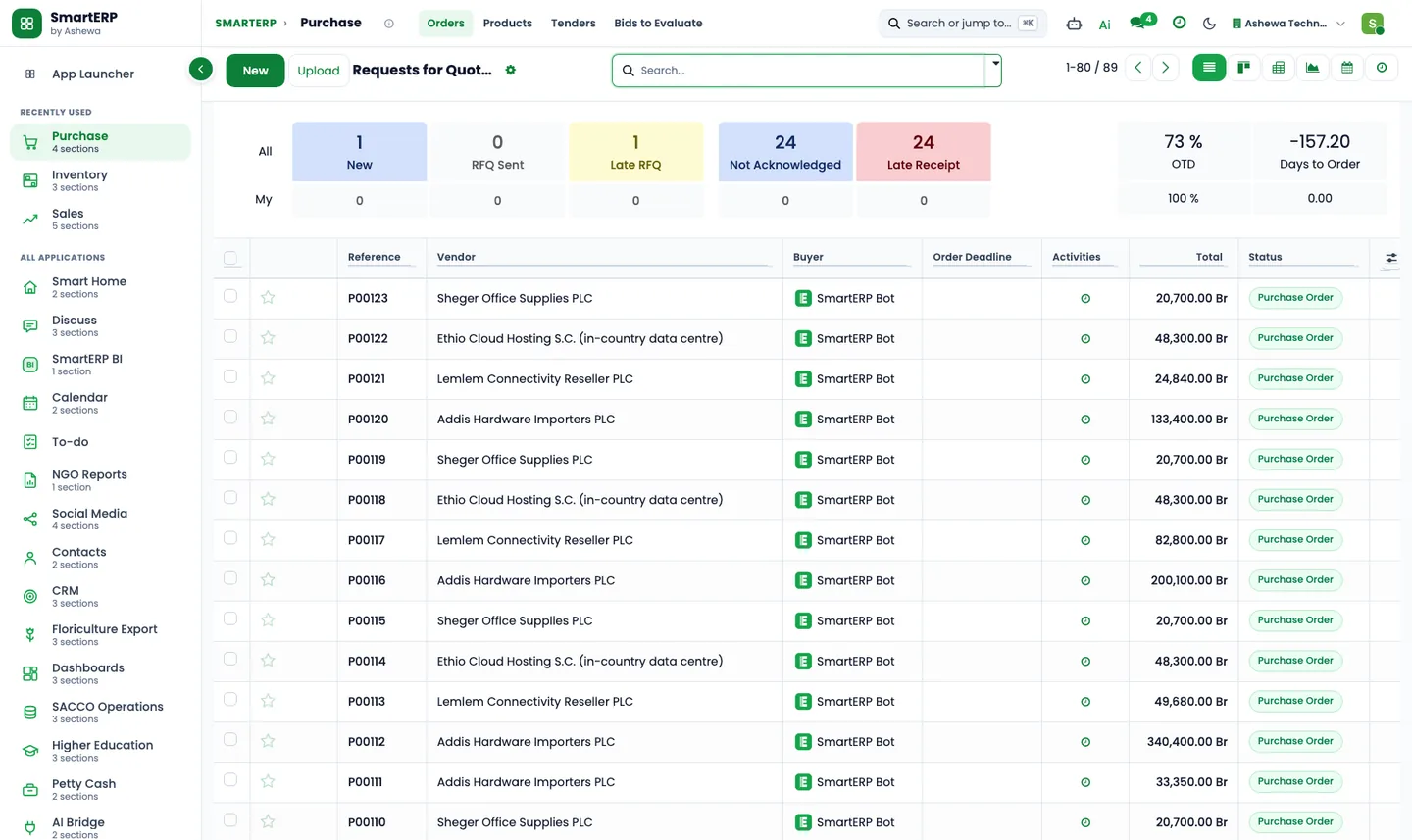
- The buyer asks the usual supplier for a quotation and confirms a purchase order.
- The stock clerk receives the delivery and compares it with the order and the supplier's paper bill.
- Finance enters the vendor bill against the order and schedules the payment.
In the product
The core applications it runs on
Real SmartERP screens with sample data: every company, person and figure shown is invented.
Who uses it
Each person sees their own work
- Store manager
- Cashier
- Sales associate
- Inventory clerk
- Buyer
- Finance officer
Access follows the role: people see and change only what their job needs.
What you can follow
Figures management asks for
- Counter sales by product and day (Store manager)
- Sales to schools and offices by customer (Sales associate)
- Stock on hand by product and location (Inventory clerk)
- Purchases by supplier (Buyer)
- Items below their reorder level (Inventory clerk)
- Unpaid school and office invoices (Finance officer)
- Expected demand for seasonal lines (Store manager) Coming soon
Documents
Printed and shared from the system
- Quotation / order
- Customer invoice
- Credit note
- Purchase order / request for quotation
- Delivery slip
- Point-of-sale receipt
- Quotation in Amharic Coming soon
What you get
What is included, and what comes next
Included from day one
- Item categories and a starter catalogue of shop items and services
- Daily and weekly shop follow-up activities
- Supplier, school and office tags
- Pipeline stages for school and office enquiries
- Counter, stockroom and management departments and job positions
- Lost reasons and lead sources, so reports show why deals are lost and where they come from
- Till categories, with the goods that are sold over the counter placed on the till
- Online shop categories with the goods placed in them, left unpublished for the business to decide
- Approval workflows by job position, applied where SmartERP Approvals is installed, with no amount limits
- Shelf and stockroom locations, price lists and line discounts
What comes next Coming soon
- Rostering counter staff by shift
- An online shop configured by the pack
- Loyalty cards and gift cards set up by the pack
- Demand forecast for seasonal lines
What this solution does not do
link to a fiscal cash machine; sending tax declarations to the authorities; payroll and pay slips; mobile-wallet payments; barcode app for stock counts and receipts. For these, SmartERP works next to other specialised software or a manual process; ask us how.
SmartERP for retail
Applications, pricing and next steps
Applications
Start with these applications
The starting set of the Trading and Distribution industry edition (required and recommended applications).
Often added for retail
Guidance for the discovery call, not part of the edition’s starting set.
Pricing
Industry edition: Trading and Distribution
An industry edition bundles the applications this industry typically uses, priced per company per year. Pricing by application and user per year is the alternative.