Take an open shift
For employees - find the published open shifts you are qualified for, take one, and see your own shifts in My Planning.
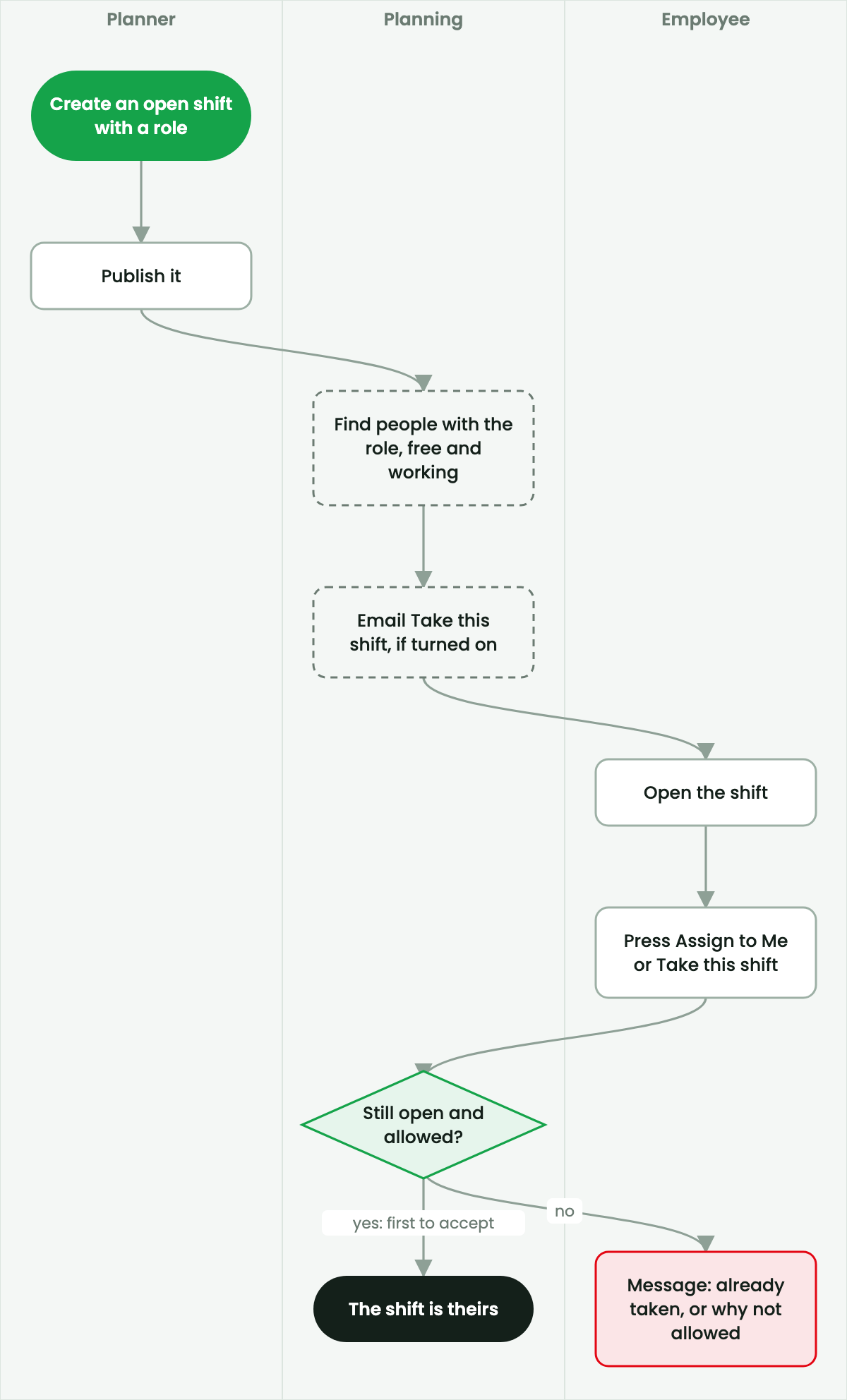
This page is for employees. An open shift is a published shift that nobody has yet. If you hold its role and are free, you can take it yourself. The first person to accept gets it.
You need a SmartERP user that is linked to your employee record, and the shift's role among your planning roles. If you do not have a login, use the personal link from your email instead; see the Portal guide.
The process#
See your own shifts: My Planning#
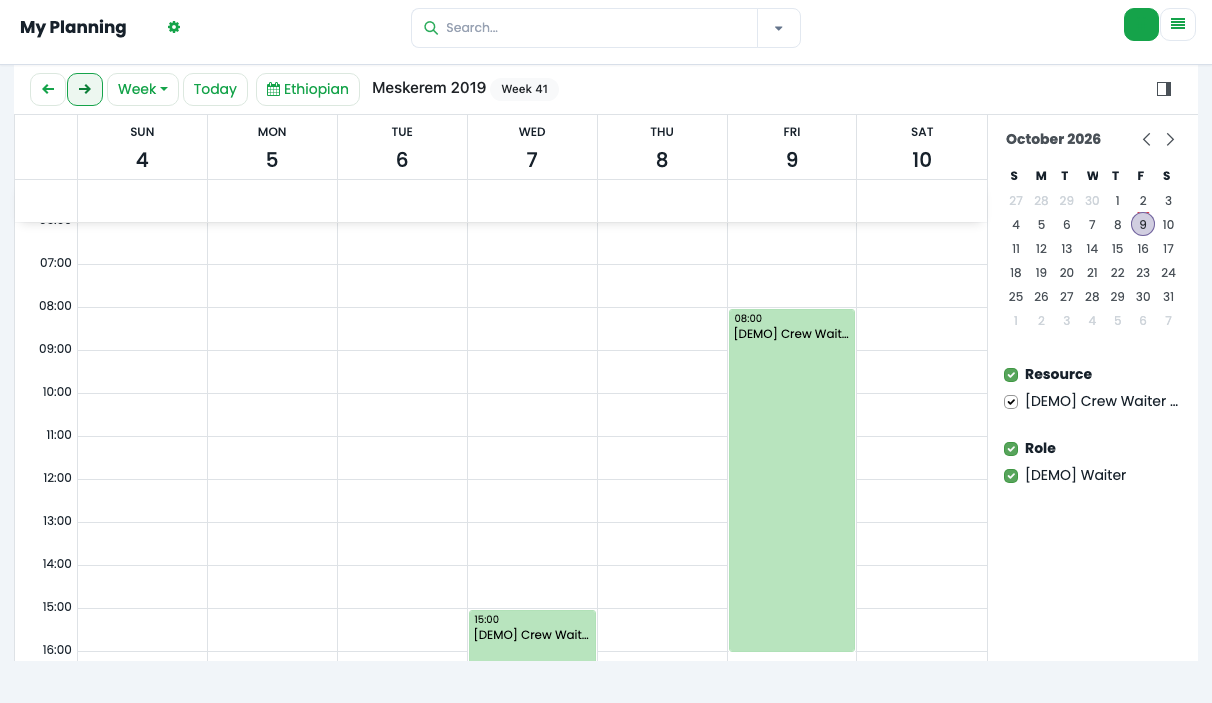
Open Planning → My Planning. It shows your published shifts as a weekly calendar. Switch to the list with the button at the top right. Use the filters to search by role or date.
Find open shifts#
- Open Planning → Open Shifts. If you do not see this menu, you can still find open shifts on the schedule or through an email link.
- The list shows open shifts that are published and upcoming: Role, Start, End, Allocated Time and Qualified People, which counts the people who hold the role.
Take a shift#
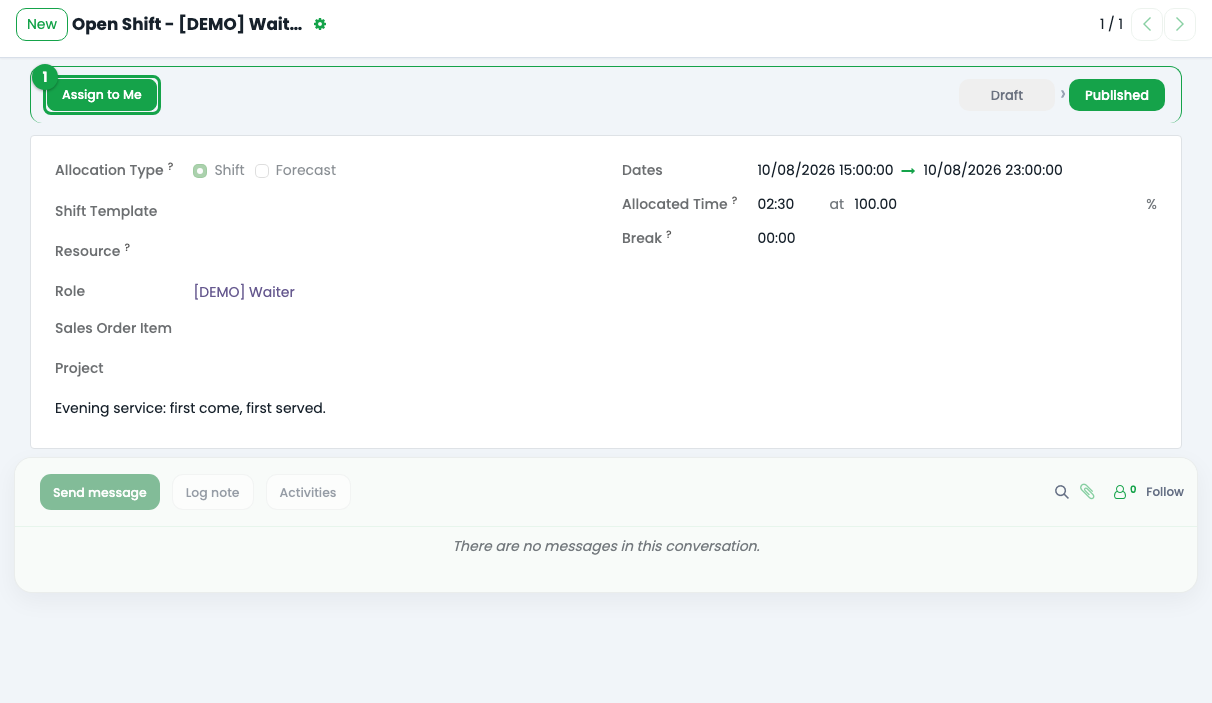
- Open the shift.
- Check the time, role and note.
- Press Assign to Me. You can also press Assign to Me on the shift's card on the schedule.
The shift becomes yours, and the chatter says "Your name assigned themselves to this open shift." Planning does not email the planner. The shift stays published, and appears in My Planning.
When the button does not work#
Planning checks that you are really allowed to take the shift. The messages you may see:
| Message | What to do |
|---|---|
| Only upcoming published shifts can be taken. | The shift is a draft, or it has already started or ended. |
| This shift has already been taken. | Someone was faster. |
| Forecasts cannot be taken. | A forecast is a reservation, not a shift. |
| This shift needs the role Role, which is not one of your planning roles. | Ask a planner to add the role to you. |
| You already have a shift during this period. | Change or give back your other shift first. |
| Your user is not linked to an employee in Company. | Ask an administrator to link your user to an employee. |
| Name is missing required skills: ... | The shift asks for skills you do not have (Skills bridge). |
| Outside Name's contract ... | The shift is outside your contract (Contracts bridge). |
If you have approved or requested time off during the shift, Planning only warns; the decision to work is yours.